The short answer
You claim your business in Business Hub, OpenAI's free tool for Businesses in ChatGPT, launched in beta on 10 November 2026. Sign in to ChatGPT, open Business Hub from the sidebar, find or add your business, and verify it by phone, business email, website domain or Shopify. Once OpenAI approves the claim and a second ID check with Persona, you get a blue check, you can edit your profile, and you can see how often ChatGPT mentions you. It costs nothing, and you don't need to advertise.
What Businesses in ChatGPT is, in plain words
When ChatGPT names a business in an answer, people can now click through to that business's profile inside ChatGPT. Businesses in ChatGPT is OpenAI's way of letting you take charge of that profile: check the details are right, add your logo and description, and see how often ChatGPT points people to you. If you've set up a Google Business Profile, it will feel familiar. It's one part of getting your business to show up on ChatGPT, alongside your website, your listings and what other people say about you.
One naming trap: "ChatGPT Business" is something else, OpenAI's paid plan for teams. The free listing is called Businesses in ChatGPT, and you manage it in Business Hub.
I claimed Marketiva on launch day and was verified within 3 hours. Everything below is what I did, checked against OpenAI's own help pages, with my own screenshots where I have them.
Can a UK freelancer or small business claim one?
Yes, if you own the business or you're authorised to represent it, and your type of business is supported where you are. You don't need an Ads account or a paid ChatGPT plan. Here's how it works out for the people I work with:
- Freelancers, consultants and contractors who sell services online and have a website: you can claim your listing, and if ChatGPT doesn't have one for you yet, you may see an option to add it.
- Founder-led and small businesses with a website: the same as above. Claim the profile once under the business name, from the founder's own ChatGPT account, then add your team or agency with their own accounts.
- Small online shops: the same as above, and if you sell through Shopify you can verify with your store.
- Shops, salons, cafés and other businesses tied to a premises: for now, OpenAI only lets local businesses claim an existing listing in the US. Search for yours anyway, but you may have to wait for the UK.
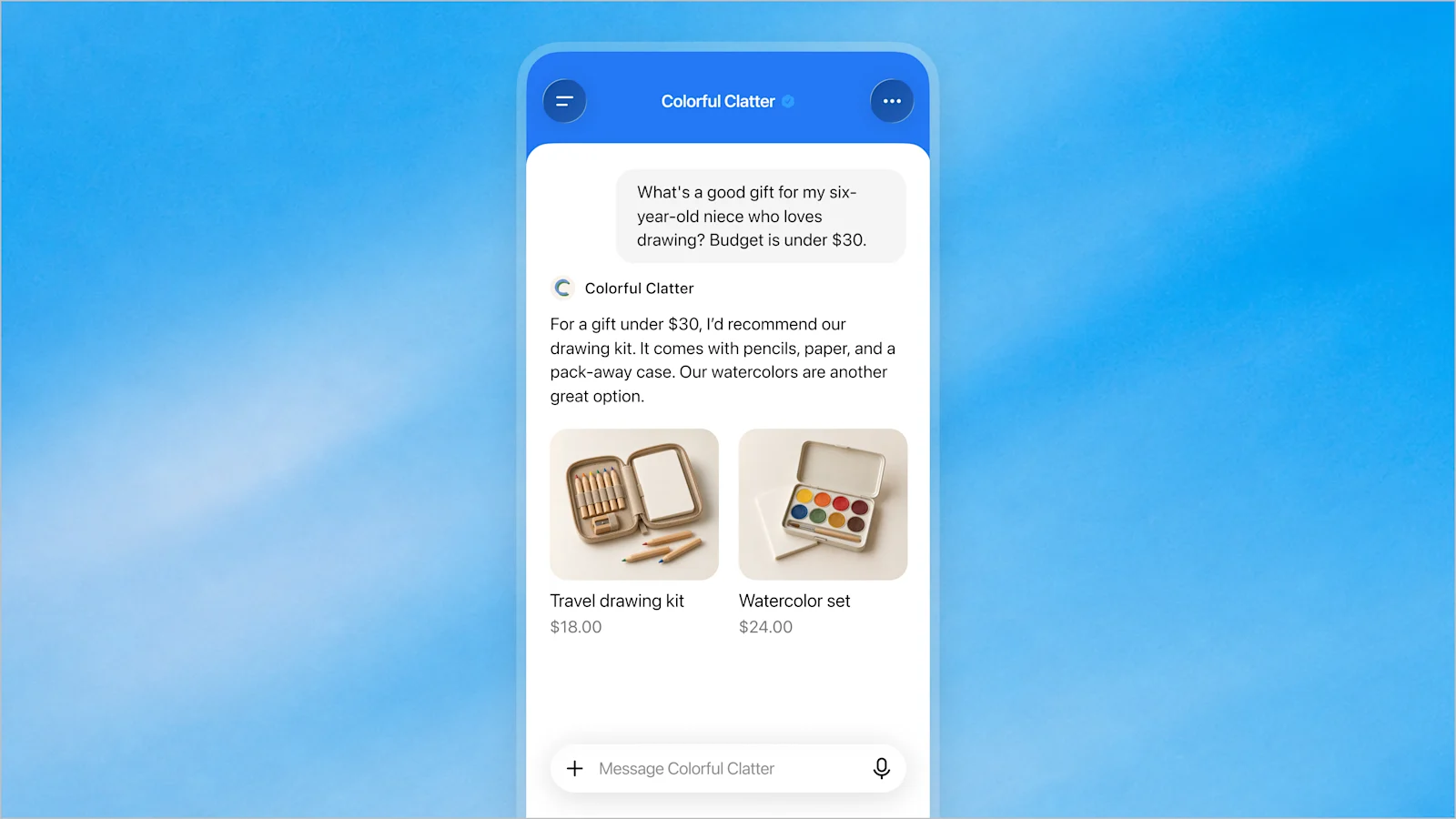
Business Agents, the chat where customers can talk to your business inside ChatGPT, are a separate, optional extra and only open to some US online businesses so far. You don't need one to claim your profile.
What you need before you start
- A website. For an online business, ChatGPT only counts a mention when it points to your website, so without one there's nothing for it to link to or for you to measure. It helps if the website says what you do, who for and where in one plain sentence.
- Your trading name, written exactly as it appears on your website and official records. If you freelance under your own name, that's your trading name.
- A driving licence, passport or other photo ID, for the identity check in step 5.
- A phone or laptop with a camera. The identity check takes a photo of your face to match it to your ID.
- The login for wherever your domain is managed, such as your hosting or domain company, so you can add a DNS record if you verify with your website. If someone else looks after it, ask them before you start.
You don't need your logo or photos yet. You can only add those after your verification is approved.
How to claim your business, step by step
Give yourself half an hour for steps 1 to 3.
1. Sign in to ChatGPT and open Business Hub
Sign in with the ChatGPT account you want to manage the business from, then open Business Hub from the sidebar, or go to chatgpt.com/business-hub. Use an account you'll keep. You can add teammates or an agency later, each with their own account, so there's no need to share a login.
2. Find your business and select Claim profile
Search for your business by name and pick the listing that matches. If you can't find it and you run an online business, look for the option to add it. If the listing says Contact support, it's locked, and support has to give you access. If someone else has already claimed it, open the profile, select the three dots (•••), then Dispute ownership.
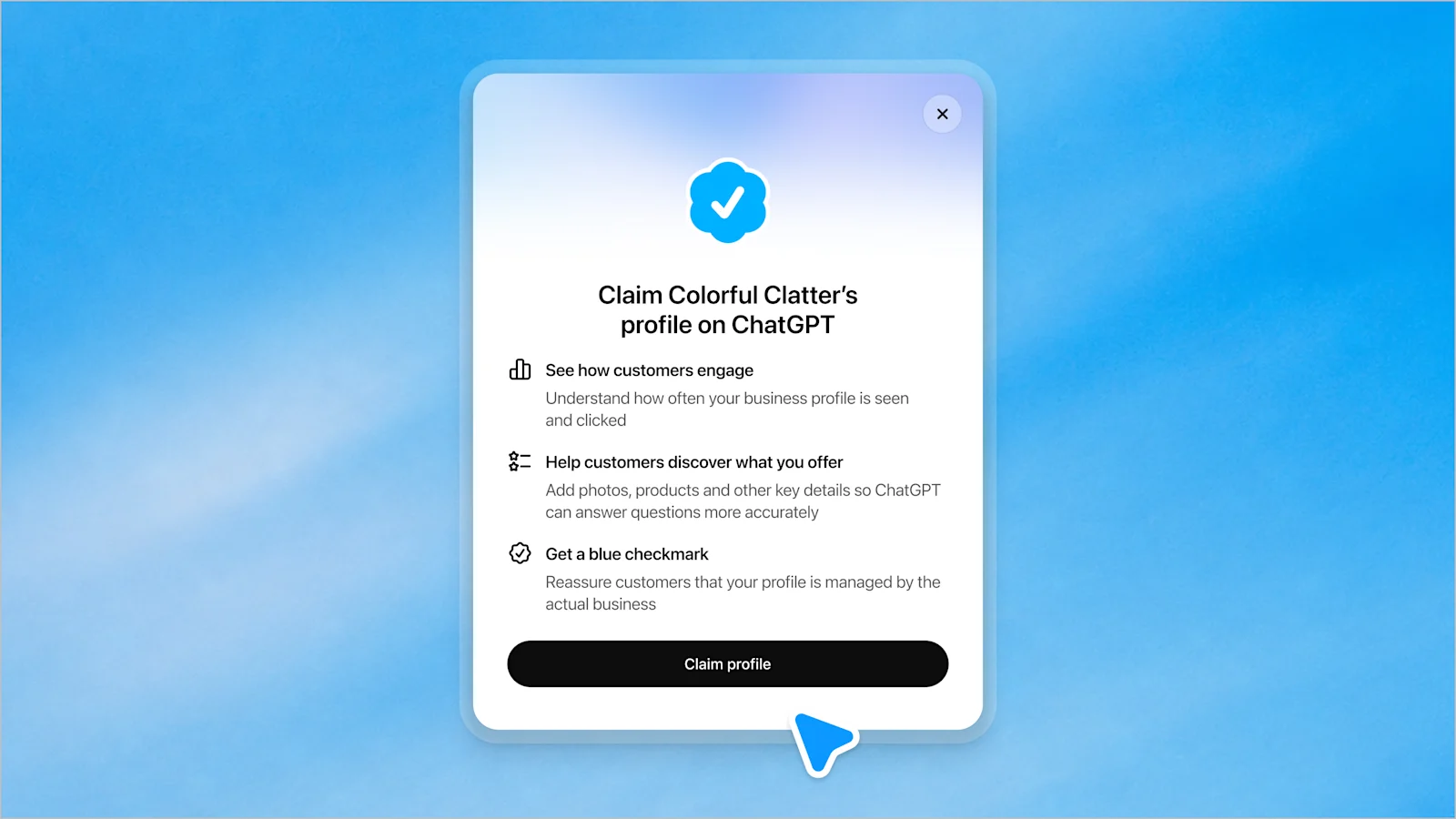
3. Verify that the business is yours
ChatGPT offers you one or more of these, depending on your business:
- Business phone: a code by text or automated call to the number on your listing.
- Business email: a code sent to the email address connected to your business.
- Website domain: you log in to your hosting or domain company and add the TXT record ChatGPT gives you to your domain's DNS settings, copying the type, name and value exactly. If someone else looks after your website, send them the record and ask them to add it.
- Shopify: you sign in to your Shopify store and connect it.
Pick the one you can finish today. If your phone number or email on the listing is out of date, the domain route avoids that, but DNS changes can take a while to show up.
4. Wait for OpenAI to approve your claim
OpenAI reviews every claim and emails you the decision, or asks for more information. Mine came back in under 3 hours, on the first day, so expect it to vary while everyone is claiming at once.
5. Verify yourself with Persona to get the blue check
Claiming alone doesn't give you the blue check, and it doesn't let you edit or see insights yet. For that, OpenAI asks you to verify your identity with Persona, an ID-checking service. Open your business in Business Hub, find Complete verification with Persona and follow the steps. You'll photograph your driving licence, passport or other photo ID, then use your camera to take a photo of your face so Persona can match the two. You may also be asked for your business registration details and proof that you can represent the business.
Make sure your trading name, address and any registration or tax number match your official records exactly. OpenAI asks for this, and it's the first thing to check if Persona turns you down. One more thing to know: if you're creating a new profile, approval publishes it straight away, so have your description written before you start.
6. Fill in your profile
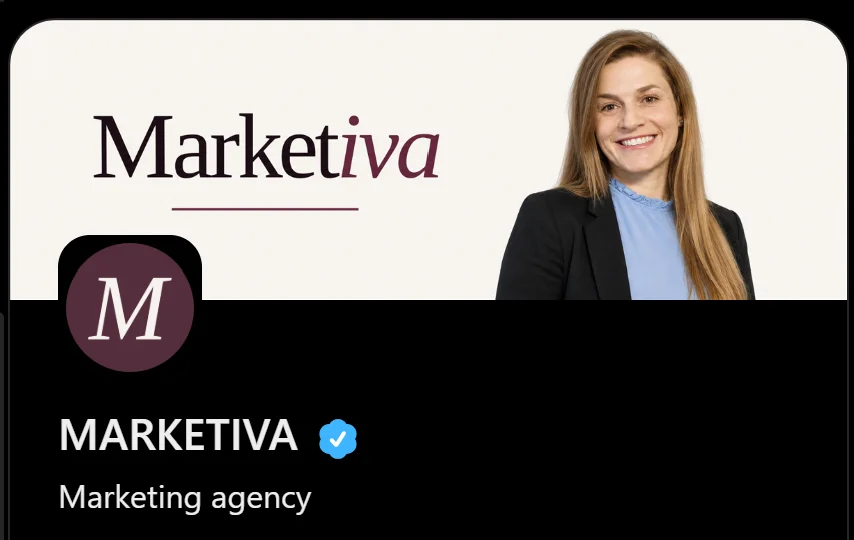
Only after your verification is approved can you add your logo, a cover photo and other photos. From here you can also update your website, business description and category, and add other details. Online shops can add delivery and return policies and connect a product feed. OpenAI reviews changes before they go live, and ChatGPT may still use other sources about you, so updates won't show in every answer straight away.
For the description, use the same plain sentence you use on your website, Google profile and LinkedIn: what you do, who for and where. Matching details everywhere is one of the five things in my guide on how to show up on ChatGPT. And check the category ChatGPT has given you, because it's the label people see first.
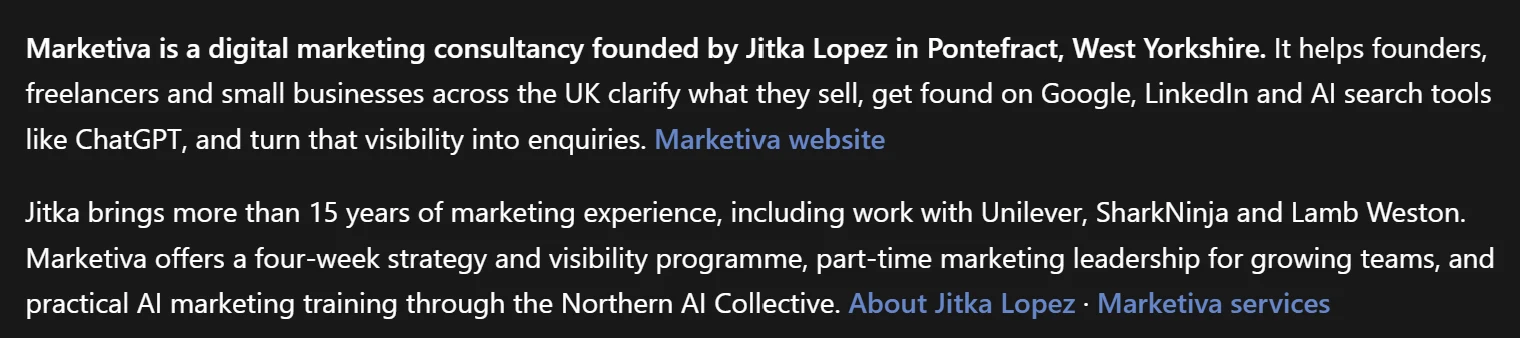
It's worth getting right. After my description went live, I asked ChatGPT "Who is Marketiva?", and its answer now follows the description from my business profile: what Marketiva is, where it's based, who it helps and what it offers, with links back to my website.
What the insights tell you
Once Persona approves you, open your business and select Insights. You see the last 28 days, in three parts.
Mentions
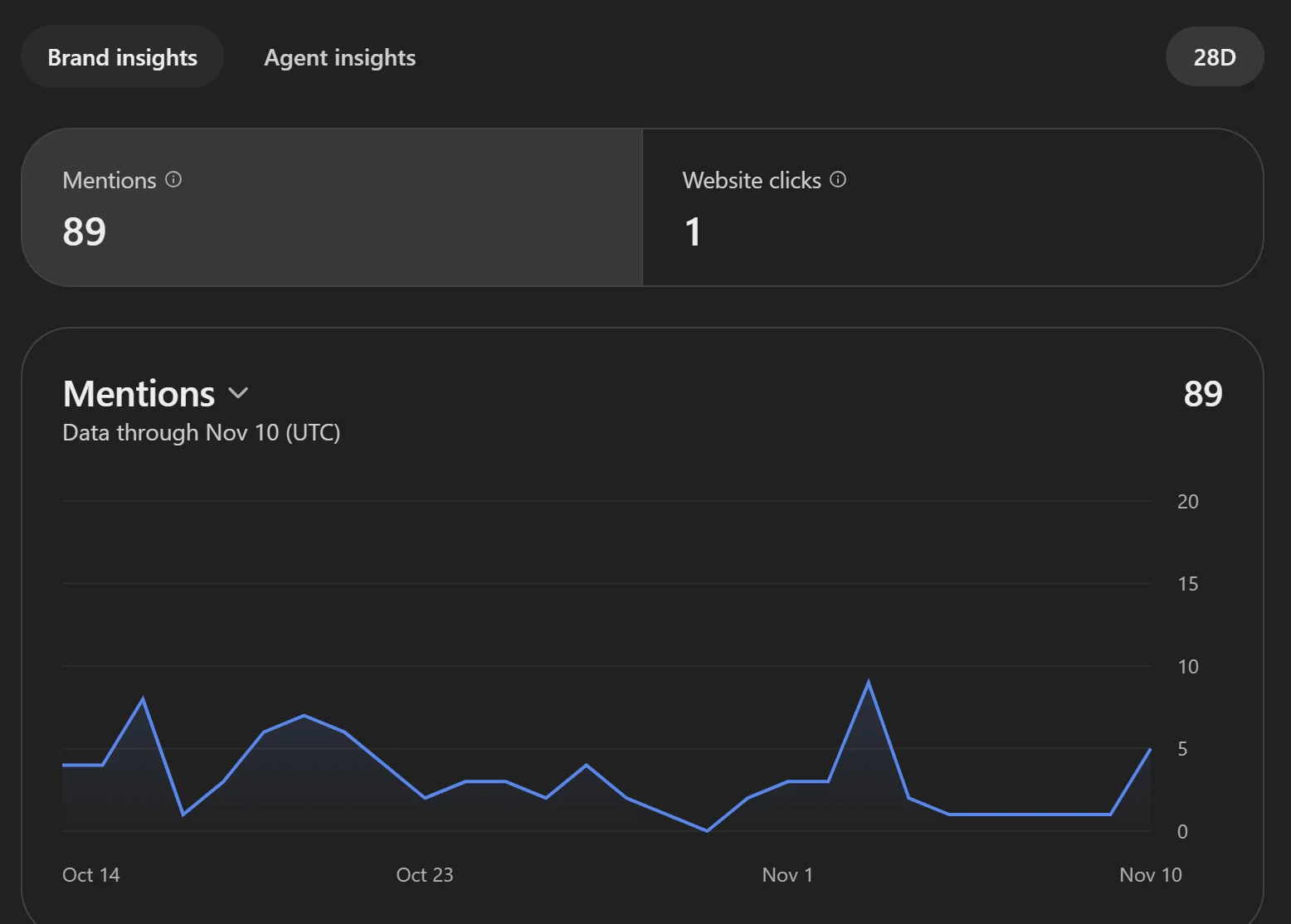
For an online business, a mention counts when ChatGPT points to your website in an answer. Your name on its own doesn't count. For a local business, it counts when ChatGPT shows your location as a result, even if nobody opens it. Marketiva had 89 mentions in its first 28 days of data, some days 8 or 9, one day none.
Website clicks
How many people clicked through to your website. Mine was 1. I'm not worried by that. For a small business still building its name, every mention puts that name in front of someone who asked the question, and a person who reads your name in ChatGPT and then Googles you never shows up as a click.
Discovery topics
These are the themes in ChatGPT answers that mentioned or cited your business, so they show what ChatGPT thinks you're about. Four of Marketiva's five matched what I do. The fifth was regional job searches, which I think comes from my LinkedIn posts about being open to contract work.
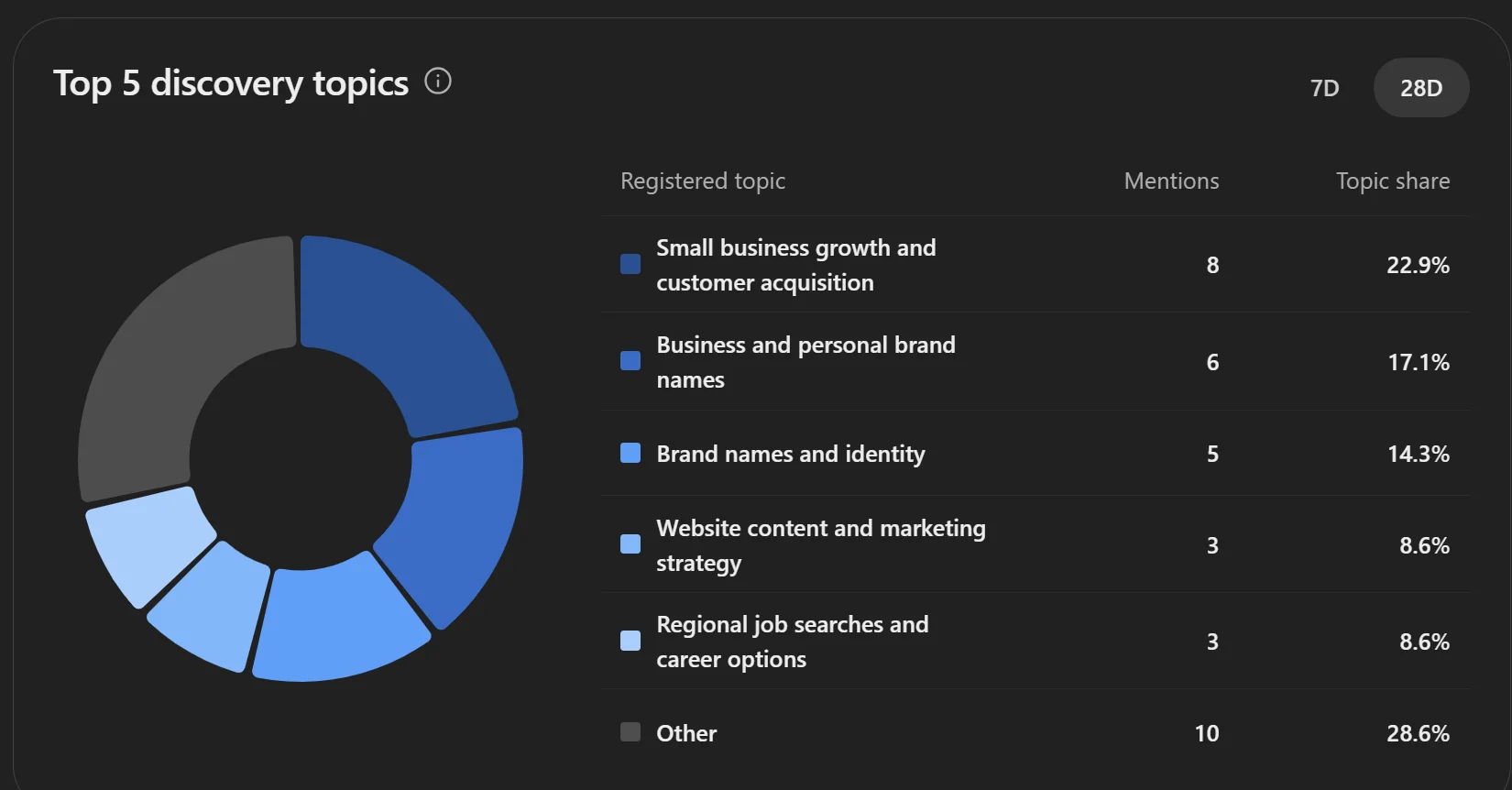
You won't see anyone's questions or conversations, only grouped themes. If a number is blank, it doesn't mean zero. It can mean there isn't enough activity to report yet, or the data is still being collected. My topics appeared a few hours after the mentions.
What claiming won't do
OpenAI is clear that claiming your business doesn't guarantee you'll be recommended more often, and paying for ChatGPT ads doesn't change its independent answers either. What claiming gives you is a say over the facts on your profile, a blue check, and numbers you couldn't see before.
Whether ChatGPT names you still depends on what it can read about you elsewhere: your website, your Google and Bing listings, your LinkedIn, your reviews, and what other people say about you. That's why I'd claim your profile and work on those at the same time. My guide on five free things that help ChatGPT recommend you covers them, or Found & Chosen works through them with you over four weeks.
What I'd do in the first month
- Read your discovery topics before you change anything on your website. They show what ChatGPT thinks you sell.
- If a topic surprises you, look for where it might come from: an old page, a LinkedIn post, a directory listing.
- Make your profile description match your website and Google profile word for word, so you use the same details everywhere.
- Ask ChatGPT about your business in a new chat, using the questions in my other guide, and compare its answer with your profile.
- Screenshot your insights once a month, with the date, so you can compare.
Jitka Lopez
Getting businesses found has been part of my job for 15+ years, from multi-market website migrations for Unilever's beauty brands across Asia to international SEO on Baidu, Yandex and Naver. Claiming a listing is the same first step it was on Google: make sure the facts about you are yours.
If you'd like to set all of this up properly with someone checking your work, Found & Chosen covers it in four weeks. If you'd rather learn it yourself alongside other founders, join the Northern AI Collective, where I'm sharing my own numbers as they come in.
Sources
- OpenAI, Introducing Businesses in ChatGPT, 10 November 2026: the launch, Business Hub, insights and Business Agents. The claim screen and Business Agent images are from this page.
- OpenAI Help Center, Setting up your business on ChatGPT: eligibility, verification methods, Persona, profile updates and how mentions are counted.
- Marketiva's own Business Hub and a ChatGPT answer, screenshots taken 10 and 11 November 2026.